
Describer Workbench user manual
For 0.8.1 · November 9, 2026 (America/Denver). See the 0.8.1 release for its notes, verification receipt and checksums. The 0.7.0 acceptance record keeps the earlier stabilization checks and limits.
Quick start without programming · Technical integration guide
Windows, macOS and Linux: use the platform installation guide for the Apple Silicon DMG, Linux x64 DEB/portable archives and repository installation. The workflows below are shared; Windows executable names, DPAPI, SAPI/OneCore and signed updater instructions apply specifically to Windows. macOS uses Keychain and measured macOS voices; Linux uses Secret Service and measured eSpeak NG. Their update command opens the manual download page. Windows, macOS and Linux share the v0.8.1 release; only Windows carries publisher signing. Mac/Linux acceptance has its own release receipts; it does not inherit Windows acceptance or signing.
This guide describes version 0.8.1 and its AI connections. New in 0.8.x: Public meeting mode for city and council meeting videos. Live text playback output applies to live text and Scene answers. Timed in-gap and pause cues use measured export-voice audio, with the host native voice as the default (Windows on Windows, macOS on Mac, eSpeak NG on Linux). The accepted Windows narration policy remains unchanged. A screen reader controls its own live-text rate and volume; unavailable reader output falls back to Qt system speech. The Speech slider scales measured WAV playback and exported narration. Older WAVs without synthesis-volume metadata need File > Repair narration before timed playback; repair preserves source media, descriptions and evidence, asks for applicable cloud consent, and must be saved to retain new audio references.
0.8.1 downloads · Project · Architecture guide
Features retained from 0.6.0
These controls are still included in 0.8.1.
- AI connections: gateway subscriptions, native Codex/Claude/Antigravity tools, named OpenAI-compatible profiles and the separate Anthropic API route. Follow connection setup; catalog entries do not establish image support or account entitlement. No route automatically falls back to another model.
- Editing and Scene: changing Start preserves cue duration; authored timing remains separate from the original visual event. Scene answers have individual Speak, Copy and Add actions. Explore supports2/5/10/20-second ranges and optional focus, with glossary context passed to the request.
- Presets and progress: File > Manage prompt presets exposes per-language prompt management. Jobs show measured pipeline progress and available token totals. Description and automatic glossary usage are labeled combined when the provider does not report separate counts; Scene usage remains separate.
- Voice and import: voice previews use the unsaved dialog choices. Original nonsecret settings import previews mapped language, installed voice, approximate rate and volume before acceptance. Missing voices are reported; original credentials are not imported. Timed speech and repair use the policy above. Only recognized redundant lead-ins are shortened, after measuring whether the original narration fits; shortened speech is measured again and the original wording remains available.
- Incomplete responses and updates: a truncated Gemini response fails the job and is retained separately for inspection in File > Recover interrupted jobs. It is never added as a completed draft. A blank update feed now checks the official latest stable release; installing requires matching archive hashes and timestamped Scott Converse signatures on both executables.
The accepted quality workflow is reviewed drafts. Source comparison of three120-second clips found improvements and remaining errors, including a wrong person in low light, an omitted short object sequence and uncertain printed text. Review and correct facts, omissions, readable text and timing before final export. A Needs review marker catches stated uncertainty; absence of that marker does not prove a description is correct. Interface-language fallback coverage is inventoried, not fully translated or native-speaker verified.
Part I — Everyday use, no programming required
1. What you can make
Describer Workbench helps you write short spoken descriptions of a video's visual information. Each description is a cue: a start time, an end time and text. You can write cues yourself, import subtitles as a starting point, or ask an AI model to draft them. You then correct and listen to the result.
The outputs are an editable project; SRT, VTT, plain text or project JSON; narrated MP3/WAV; or a described MP4. Complete media exports include no-fit descriptions by pausing the source. MP4 freezes the picture at the original event while narration plays, then resumes. This extends the timeline; it does not create an embedded selectable alternate track.
Every native package contains the desktop and a CLI, including REST and MCP access. Windows uses DescriberCLI.exe, Mac uses Describer Workbench.app/Contents/MacOS/DescriberCLI, and Linux provides describer (DEB) or DescriberCLI (tar). Older 0.4.2 downloads do not contain the shared engine or transports.
AI descriptions need editorial review. In particular, the Ollama path sees still images sampled from the video and receives no audio. It cannot know when someone is speaking or confirm a spoken name. The new engine measures speech/vocal protection separately with local YAMNet; it never asks vision to invent safe dialogue gaps. Review still matters for missed speech and visual facts.
2. Install and choose a working mode
Choose your platform below. The quick start gives a short first-project walkthrough.
| Computer | Download | Install and start | Publisher signing |
|---|---|---|---|
| Windows x64 (Windows 11 tested) | Portable ZIP | Extract everything; open DescriberWorkbench/DescriberWorkbench.exe. Keep _internal beside it. |
Scott Converse, Azure Trusted Signing with Microsoft timestamps |
| Mac, Apple Silicon, macOS 15+ | arm64 DMG | Open DMG; drag the app to Applications. | No Apple publisher certificate or notarization; ad-hoc integrity only |
| Mac, Intel, macOS 15+ | No Intel DMG (dropped in 0.7.0) | Install from the repository; see the platform guide. Not tested on Intel. | None (source install) |
| Ubuntu 24.04 / compatible Debian desktop, x86-64 | DEB installer | sudo apt install ./DescriberWorkbench-0.8.1-linux-x64.deb; open Describer Workbench from the applications menu. |
Unsigned |
| Other Linux x86-64 desktops | Portable tar | Extract; run DescriberWorkbench/DescriberWorkbench after installing native dependencies. |
Unsigned; other distributions not acceptance-tested |
Compare the download with its release checksums. Mac/Linux prerequisites, approval, updates and removal are in the platform guide. Mac has no Apple publisher certificate/notarization; Linux is unsigned.
Windows: download the portable ZIP from the release page. Extract everything, then open DescriberWorkbench/DescriberWorkbench.exe. Keep the _internal directory with the executable. The current portable build has GUI and CLI executables signed as Scott Converse using Azure Trusted Signing with Microsoft timestamps. It includes the application runtime and media tools; it does not include Ollama, AI model weights or videos.
Use one of these paths:
| Mode | Setup | Best starting task |
|---|---|---|
| Manual/offline | No AI key. Use your platform’s installed native voices. | Open video, add one cue, listen and export. |
| Local AI | Install/start Ollama and install a vision model separately. | Choose Ollama, refresh models, test a short range. |
| Gemini | Enter your Google Gemini API key/model in Settings. | Confirm upload and analyze a short clip. |
| Ollama cloud/remote | Configure sign-in/access in Ollama or the remote server. | Select a vision-capable tag and confirm transmission. |
Native subscriptions and compatible/API analysis are described in AI connections. API credits and subscription access are separate. OpenAI speech remains an optional text-to-speech service. No key is needed for manual editing, subtitle import, local playback or native speech. A local AI model still needs enough RAM/VRAM for that model; the app does not estimate hardware requirements.
3. Your first project
- Choose Open video (Ctrl+O). Select a local video such as an MP4 of Big Buck Bunny. Use the video file itself, not an SRT subtitle, soundtrack or folder. The default selector lists MP4, MKV, MOV, AVI and WebM. All files exposes other files, but decoding is still required.
- Use the Play/Pause icon to confirm playback and sound. Click the timeline to seek; −10 s / +10 s moves in ten-second steps. Ctrl+wheel zooms the timeline; the wheel or its bottom scrollbar pans the visible range.
- Choose Add at playhead in Descriptions. This creates a three-second cue (clipped to the video end). Edit Start, End and the description inline. Changes apply as you type; Ctrl+Z undoes them.
- Save with Ctrl+S and choose a name ending in
.adproject. The project points to your video; it does not copy it. Keep the video available. - Select the cue in Descriptions. It seeks to the cue's start. Enable Speak descriptions, then play. Adjust the Video and Speech sliders beside the playback controls; speech volume is also available in Settings.
- Correct the words or timings inline. Save again. Use Export → Subtitles · .srt for a simple first output, or choose MP3 for spoken narration mixed with the soundtrack.
For an AI first draft, save your project, seek to the intended beginning and follow section 5. Start with Next 20 seconds or Next 60 seconds before requesting a whole film.
4. Find your way around
The Start screen opens videos, URLs and saved projects; saved projects appear in Recent projects. The editor places video and transport above a seekable timeline, alongside Descriptions, Scene and Glossary tabs. Draft with AI opens provider/model, range and editorial controls. The job card cancels active work. View → Log opens diagnostics. Start contains Open video, From URL and Open project action cards; the editor toolbar Open action returns to Start. Drag a local video or .adproject file into the window to open it, after any unsaved-change confirmation. Settings uses section navigation. The Theme button switches light/dark appearance. Timeline description buttons support keyboard focus; activating one selects and seeks to that cue.
The File menu includes projects, subtitle import, glossary, prompt presets, connection/sign-in tools, voice tools, original-data import, recovery and update checks. Help (F1) opens brief built-in help and the app displays its actual version. Some operations are unavailable while a background job is active; wait for completion or cancel it.
| Shortcut | Action |
|---|---|
| Ctrl+O | Open video |
| Ctrl+U | Download/open URL |
| Ctrl+Y | Open YouTube through the same download workflow |
| Ctrl+Shift+O | Open project |
| Ctrl+S | Save project (inline edits already apply) |
| Ctrl+I | Import SRT/VTT after opening video |
| Ctrl+, | Settings |
| Ctrl+E | Export |
| F1 | Built-in help |
Press Space to toggle playback when focus is outside single-line and multiline text editors and the key reaches the main window. Text editors retain Space for typing; focused buttons/lists may handle it themselves. The application defines the shortcuts above with Qt Ctrl sequences; macOS Qt presents the native command-key equivalent. Use the displayed menu shortcut for your host; the timeline’s Ctrl+wheel modifier is a separate control. The Play/Pause icon always provides an explicit playback action. Ctrl+Z and Ctrl+Shift+Z undo/redo cue edits. Ordinary Tab navigation follows Qt focus order. Since 0.7.0, custom lists paint focus and show visible focus borders. Description and timeline accessibility names include cue number, start/end, placement, review state, text and stated uncertainty. Primary buttons use white on darker blue (above 4.5:1 calculated text contrast). A Windows NVDA 2026.3 workflow exercised cue navigation, editing, undo/redo, save and live-text output; no JAWS, VoiceOver, Orca or human-listening acceptance is claimed.
5. Draft with AI
Local Ollama
Start your separately installed Ollama server. Open Draft with AI, choose Ollama, then Refresh models. Entries show exact IDs and available metadata such as family, quantization, size, context, vision, location and loaded status. Missing fields remain unknown. An unhealthy catalog entry does not erase other healthy rows; exact manual IDs remain available. A text-only model cannot analyze video, even if it answers ordinary chat prompts.
Draft preflights the selected speech detector. If missing or corrupt, it offers an explicit download/repair and continues only after SHA256 and ONNX validation. Cancel makes no provider request. File → Install speech detector repairs the selected custom path as well as the default path. Network reads have a ten-second timeout; cancellation waits for a pending read and preserves an earlier valid asset. Completed installation is retained if cancellation arrives afterward. If it is unavailable or changed, analysis and narrated export stop before inference. An already verified file can be reused offline.
Choose an installed vision entry. To change a tag, select a discovered row or type the exact ID without display annotations in the separate Exact analysis model ID field. Test connection and Start draft use that exact ID. Test connection first checks capability and then sends a short text prompt; a successful reply does not prove visual understanding. Refresh itself makes metadata requests, not inference requests or downloads.
If the server is elsewhere, set its root address and optional key in Settings. Local default: http://127.0.0.1:11434. Remote addresses require HTTPS. For cloud tags, sign in using Ollama itself. Ollama uses its own sign-in. Subscription tools and the shared gateway use the separate sign-in paths in AI connections. Remote/cloud inference asks permission before sending sampled frames/prompts and may use paid allowance. Local server selection alone does not guarantee private inference if Ollama routes the chosen tag to its cloud.
Gemini
Enter Gemini API key and Gemini model in Settings. Choose Gemini in the Draft with AI dialog and use a model your account can access. Analyze, Ask and Explore ask before uploading video. Clips include audio by default; Remove audio before uploading video removes it and also removes the model's evidence for dialogue and audible names. Provider account access, quotas and charges apply.
Range, prompts and replacement
Since 0.7.0 — Draft with AI: choose the connection and section, check the selected model and visible transmission notice, then Start draft. Advanced reveals all existing exact-model/catalog/test, provider, preset/prompt, verbosity and glossary controls in a scrolling panel. The notice and Start/Cancel remain visible outside that panel. Switching connections keeps each provider's configured model; nothing selects a substitute model. Cancel restores settings and editorial text. External operations still require their existing confirmation. If a connection has no model, open Advanced to choose it.
Since 0.7.0: after drafting, use Review draft to select proposed descriptions. Conflicting existing descriptions are kept by default; replacing one requires selecting both its replacement and the proposal to use. A description crossing the requested range boundary always stays. The existing glossary also stays unless you explicitly select its proposed replacement after comparing both versions. Apply changes the project in one step; Ctrl+Z restores cues, review/provenance, coverage and glossary together. Cancel keeps the project unchanged. Accepted partial-range narration must be repaired before timed playback; media export re-plans the combined project.
Choose Whole video, Next 20 seconds or Next 60 seconds. Next ranges start at the current playhead and stop at the end of the video if necessary. Pick a prompt preset or edit the editorial guidance, then choose Start draft.
Draft review preserves existing descriptions by default. Replacements require explicit approval; boundary-crossing descriptions stay. Use File → Save project as (Ctrl+Shift+S) to keep a separate copy.
The log reports prepared ranges, response progress and available token metadata. Long jobs run sequentially. At the default Ollama frame interval, a 60-second range normally means four requests. Do not assume a single short response represents the whole requested range; inspect the final cue coverage.
Public meeting mode
Public meeting mode is for city, council and board meeting videos. It was added in 0.8.0 and improved in 0.8.1. Other videos keep the normal behavior.
Turn it on. The window has no switch for this mode yet. Close the app. Open settings.json in the host data folder (see section 12). Set "drafting_mode": "Public meeting", save the file and start the app. To turn it off, set "drafting_mode": "". For the CLI, REST or MCP, put the same key in the request settings. The Public meeting prompt preset only changes the prompt text; it does not turn on the mode.
What the mode changes:
- Only frames with a visible change are described. Unchanged frames are skipped.
- Ollama frames are up to 1280 pixels on the long side (normally 640), so slide titles and on-screen text can be read.
- The model is asked for meeting events first: votes, speaker changes, slides, on-screen text and scene changes.
- Small body moves (a nod, a glance) and "nothing changed" cues are dropped.
- Each cue gets a second look against the picture. A cue that is not true is dropped.
- When a slide cue and a cue about a person overlap, the slide cue is kept.
- Internal labels such as "Speaker 1" are never spoken.
- Only meeting events may pause the video. A cue about a person that finds no speech-free gap is not spoken. It shows Dropped: no gap and stays in the coverage file.
- Pause narration is limited to 8 seconds per minute of video by default (
max_pause_seconds_per_minute).
Captions help. Set "captions" to the path of an SRT or VTT file for the same video. Then the transcript is given to the model, and vote words start a check for raised hands. A VTT file with word times also shows the pauses inside a caption line, so cues fit between words. The desktop has no captions control: a captions path in settings.json applies to every video you draft, so remove it after that video.
Measured quality (0.8.1). On 13 test videos, 105 cues were graded by hand (model gemma4:12b): 67.6 % correct (0.8.0: 29.5 %), 3.8 % wrong or made up (15.4 %), 10.5 % trivial (36.5 %). Every cue was spoken in a gap or paused the video for a meeting event. Extra length was 1.6 seconds per minute (6.0). These are results on a small test set, not a promise for your video.
Known limits. The model can still report a vote when there is none. On one test video it said "An audience member raises a hand." and no hand was up. Results change from run to run on the same video. Some videos get very few cues (2 in 5 minutes on one test video). Check every draft before you export.
Model settings that reproduce tested requests
| Exact tag | Thinking | Maximum output | Context |
|---|---|---|---|
gemma4:12b |
Off | 32,768 tokens | 65,536 tokens |
gemma4:26b |
Off | 32,768 tokens | 65,536 tokens |
qwen3.8:27b-q6_K-vision |
Off | 32,768 tokens | 65,536 tokens |
These use the model's native sampling settings. They are request profiles, not globally installed Ollama configuration or guaranteed public registry names. Renamed models and aliases do not inherit them. The Qwen vision tag was available in the test installation; the text-only Q6 tag is unsuitable. DeepSeek 1017 tags request low effort but still must pass the vision check. Other tags use existing adapter defaults; the UI has no universal effort/context/output control.
Glossary and consistency
With Recognize characters and update the glossary enabled in Draft with AI, the model is asked to return stable visual identities. Generated glossary entries are carried into later chunks. The Glossary tab (also reached through File → Character glossary) lets you edit character cards; Add character is beneath the list. It is stored in the project and can affect future analysis, Ask and Explore.
For a clean model comparison, use identical media/range/prompts and clear the glossary before each run. Keep each result in a separate project. Do not let incorrect identities become established facts. Ollama is told to leave names unknown because it has no audio; a visual label is not an established personal name.
Since 0.7.0 — saving and recovery: File → Save project as… (Ctrl+Shift+S, shown with the host's native modifier) writes a separate version and makes it the active save path; cancel/failure keeps the old path and file. Choose a different filename to preserve the original.
Unsaved, idle projects receive local recovery snapshots every 30 seconds. File → Recover unsaved drafts, or the Start screen action when snapshots exist, opens a recovered unsaved copy. Save that copy with a new name. Pending editor text and intermediate invalid times are retained; correct invalid values before saving. Recovery requires the source video to retain its size and modification time; restore the original file if it changed. Snapshots are separate from interrupted AI-job recovery and never overwrite your explicit project files. Keep explicit saves: an interruption before the first snapshot can lose the latest 30 seconds. The store retains at most 3 versions per project, 20 total and 50 MiB; individual snapshots over 10 MiB are skipped with a diagnostic. Old versions expire as new ones arrive. Saving or explicitly discarding clears this session's snapshots; previous-session drafts remain available within those bounds. These changes were added in version 0.7.0.
Glossary cards include Delete character. Ctrl+Z restores a deleted character; Ctrl+Shift+Z deletes it again. Other glossary lines, cues and evidence remain intact.
Since 0.7.0 — repeated drafting: speech/vocal measurement is reused locally when the video, detector and analysis implementation still match. Repeating a short-range draft can therefore avoid scanning the whole soundtrack again. Changed videos/detectors or rejected cache data are measured again. This preserves dialogue protection and caption handling; it does not reuse AI descriptions or change your selected provider/model.
6. Edit and review descriptions
Since 0.7.0: continuous text typing is grouped into one undo step until a pause of 1.2 seconds, cursor navigation, a different cue, or another operation. Ctrl+Z, Ctrl+Shift+Z and the text context menu use the same project history, including review state and coverage. Text edits update the existing cue widgets; timing changes may reorder the full list.
Select a description to seek and expand its inline editor. Start, End and text update the project immediately when valid. Add at playhead inserts and selects a three-second cue. Delete removes the selected cue after confirmation. Ctrl+Z and Ctrl+Shift+Z undo/redo cue edits.
Times accept numeric seconds (62.5), minutes/seconds (1:02.5) or hours/minutes/seconds (00:01:02.5). Changing Start shifts End to preserve cue duration; changing End adjusts only End. The ± buttons nudge by 0.1 seconds. Invalid intermediate input stays in the editor but does not enter the project; correct it before saving or exporting. Text must be nonempty and the end must follow the start within the video duration.
Since 0.7.0: the selected description stays selected when changing its time moves it in the list, or when a filter still includes it. Deleting it selects a neighboring description. Undo restores the description and its metadata; ordinary typing remains grouped into useful undo steps.
Use this review sequence:
- Watch the source scene and verify visible actions, objects, identities and chronology.
- Remove guesses, redundant dialogue and descriptions of sounds already audible.
- Listen to confirm the independently measured speech protection. The classifier is separate from Ollama and is not infallible.
- Fit the words comfortably in the cue window; shortening text is often better than fast speech.
- Check adjacent cues, continuity and overall coverage. A valid timestamp is not proof of useful timing.
AI chunk validation rejects malformed times, text or metadata as a whole before caching success. Rejected responses remain separate diagnostic artifacts; retry requests a corrected response while reusing valid prior chunks. Normalization removes only duplicates of the same event/time/text. It preserves genuine repetitions and overlapping event intervals. The planner then selects an independently protected gap within the original event; it never moves an event to a different scene to conceal overlap.
Description rows show In gap, Sped up, Pauses picture (or a pause duration), Needs review, or Not yet placed tags. Needs review corresponds to the stored unresolved disposition; Not yet placed corresponds to unplanned. Use the All / Needs review / Pauses filter above the list. Mark as checked appears only on Needs review cues and clears the uncertainty after you verify the facts; it does not measure narration or establish accuracy. Editing a cue clears its old plan; narrated export replans it. The inline fit meter is a word-count estimate unless a matching measured narration duration is available. Start at playhead and End at playhead set the respective boundary. Preview in context plays from two seconds before Start; it is not a bounded-loop preview.
7. Ask and explore a scene
Open Scene → Ask (or Ask about scene in the description editor). Enter a question, choose Context ±2.5 s, ±5 s or ±10 s, then select Ask. These request 5-, 10- or 20-second windows centered on the captured playhead, bounded by the media ends. The player pauses and the selected provider analyzes that window. Answers and conversation history appear in the tab. Add as description, beside the latest answer, inserts a four-second cue at the captured position, clipped to the video end and marked Needs review. Check its facts, timing and text. Conversation history is session memory, not a saved project field.
For a spatial view, open Scene → Explore layout, choose2/5/10/20 seconds and optional focus, then Observe current scene. The request includes the project glossary and embeds an explorer in the tab. It is an AI-generated 0–10 object grid, not measured coordinates or a reconstruction. Models can omit or misplace objects. Click or Tab into the grid before using its keys:
| Explorer key | Action |
|---|---|
| Arrow keys | Move one grid unit |
| D | Announce layout summary |
| L | List object names |
| Shift+L | Choose/jump to an object |
| Enter | Describe the nearest returned object |
Both tools use the selected analysis provider and applicable transmission confirmations. Ollama receives sampled frames without audio. Switch back to Descriptions to edit cues; these tools no longer require a separate conversation/explorer window.
8. Listen, choose voices and export
Speak descriptions enables speech when the playhead enters a cue. Timed cues use measured narration WAVs: in-gap cues use bounded speed and duck the soundtrack; pause cues stop the source, play measured narration, then resume. Windows is the default export voice on Windows; the add-ons default to macOS voices or eSpeak NG. Unresolved cues are not narrated. Seeking stops narration and resets pending pauses. Late entry into a safe slot pauses instead of overrunning it. Older unplanned cues use live text speech until replanned; planned WAVs with unknown recorded synthesis level require repair. Player volume and speech volume are separate. The Speech slider scales live Windows text speech and measured WAV playback/export. The optional screen reader controls its own live-text volume/rate; it does not schedule timed narration. Allow new descriptions to interrupt speech applies to live text interruption/queuing.
The Audio export speech engine is separate from playback voice:
| Engine | What it uses |
|---|---|
| Windows | 64-bit SAPI voices installed in Windows |
| Windows 32-bit | 32-bit SAPI via the SysWOW64 PowerShell host |
| Windows OneCore | Installed Windows OneCore voices |
| macOS (Mac add-on) | Installed macOS voices, synthesized to measured WAV |
| eSpeak NG (Linux add-on) | Installed eSpeak NG voices, synthesized to measured WAV |
| OpenAI | Configured API key, model, base voice/preset and paid remote synthesis |
Choose the engine and voice directly in the Export dialog for narrated media. Installed native voices load asynchronously for the selected engine; OpenAI lists the configured base voice and saved presets. Accepting Export saves the selected engine/voice for subsequent exports; Cancel leaves settings unchanged. Alternatively, configure Settings → Export voice or File → Select Windows export voice on Windows (the corresponding native-voice action on Mac/Linux) and use Test selected export voice for a preview. Changing engines clears an incompatible native voice selection. OpenAI preview and export confirm before sending text. Draft also names OpenAI speech separately from its vision destination before any external processing.
Manage voice presets adds, edits, deletes or imports original voices.json personalities. Choose the active preset in Settings. Presets set a base voice, speed and delivery instructions; instructions are sent only for the compatible gpt-4o-mini-tts family. They do not turn a native voice into an OpenAI voice.
Export choices:
Since 0.7.0: Export shows the selected format's outcome. For MP4/MP3/WAV, Measure narration uses the selected voice and actual speech detector to measure and place narration, then reopens Export with your format, voice and path retained. Cloud speech still asks for consent. Measurement is an undoable project change; save to retain the new audio references. The preview adds measured pause narration to source duration. Changing descriptions, source, captions, voice/rate or missing audio invalidates it. Export measures again, so synthesis and codec rounding can change the final duration. You may export without a preview; no guessed duration is presented. Subtitles retain source times and cannot reproduce picture pauses; TXT and JSON do not contain narrated media. This preview was added in 0.7.0.
- SRT: timed UTF-8 descriptions. This is not a speech transcript unless your cues are transcripts.
- Plain text: one description per line; timing is omitted.
- VTT / JSON: WebVTT script or full project JSON with event and coverage metadata.
- MP3 / WAV: original soundtrack mixed with measured narration, stereo output; pause descriptions extend the audio timeline.
- MP4: described video with frozen picture and paused original audio while each pause description plays.
Speech acceleration is limited to 1.15x. If a cue cannot fit its event, it becomes pause narration. Complete media exports reject unresolved events; the API offers an explicitly incomplete in-gap-only mode. Script files and all exported media have a .coverage.json sidecar. SRT/VTT retain event times, so a plain subtitle player cannot reproduce pause narration. Background ducking is applied once with 50 ms transitions. Listen for classifier mistakes and intelligibility.
MP3 is audio only; choose MP4 for a described video. Save the .adproject and its engine workspace as well so you can revise it later.
9. Import and download
Open video first, then Import SRT / VTT (Ctrl+I). Import replaces current cues after confirmation. UTF-8, UTF-16 with a byte-order marker and Windows-1252 fallback are supported. Empty/zero-length subtitle entries are skipped with warnings. Basic VTT cues accept MM:SS.mmm or HH:MM:SS.mmm timestamps, including a mixture in one file. Existing hour-qualified SRT timestamps remain supported. The parser handles these timestamped variants; it is not a general preservation tool for WebVTT styling, regions or metadata.
Open URL / Open YouTube asks for a URL and destination folder, downloads through yt-dlp and opens the resulting video. Quality is configurable. Use content you are entitled to download. Public extractor behavior changes and was not verified against live YouTube in the release acceptance; a local HTTP download fixture was tested.
File → Import original data explicitly imports original description/glossary JSON or preferences. It supports plain JSON, obfuscated settings.dat2, and older machine-bound settings.dat with its matching key.salt on the original Windows machine. The machine-bound path has synthetic-fixture coverage, not acceptance with a user's credentials. Prompt data can be imported through this workflow; voice personalities use the voice manager. Original files are read only and API keys are excluded from preference import. A Workbench project is a separate format.
10. Settings reference
| Setting group | Meaning |
|---|---|
| Provider fields | Gemini key/model; Ollama root URL, optional key; OpenAI key, speech model and base voice. Analysis provider/exact Ollama tag are in Draft with AI. |
| Description language / verbosity | Requested output language and Short/Standard/Detailed guidance. Model compliance is not guaranteed. |
| Chunk duration / enable chunking | Gemini segment length (15–1800 seconds). Ollama additionally caps chunks at eight frame intervals even if chunking is disabled. |
| Gemini frames per second | FFmpeg segment preparation, 1–30 fps. Despite the UI label, it also affects the prepared video from which Ollama samples frames; Ollama's sampling interval is separate. |
| Ollama frame interval | 1–10 seconds, maximum eight frames per request. Wider intervals reduce temporal coverage. |
| Ollama timeout | 30–1800 seconds; default 600. An idle network read can take up to 120 seconds or the shorter configured timeout to return. |
| Gemini temperature | Generation sampling parameter. Tested Gemma/Qwen profiles omit it and preserve native sampling. |
| Recognize characters | Requests and carries a visual glossary. |
| Remove audio | Strips audio from prepared video. Gemini then loses dialogue evidence; Ollama already receives no audio. |
| Background ducking | −40 to 0 dB, default −15 dB. More negative reduces the original bed more. |
| Speech rate / volume | Native export voice rate −10 to 10. Speech volume 0–100 scales live Qt speech, measured WAV playback and exported narration, including OpenAI narration. Newly planned Windows WAVs are synthesized at 100% and scaled using their recorded level. A screen reader controls its own volume/rate; older WAVs without a recorded level require repair. |
| Playback voice / output | Qt system voice or active screen reader; separate from export engine/voice. |
| Interruption | Allow new cue speech to interrupt, or queue it. |
| Interface language | English, Arabic, Spanish, French, Italian, Portuguese, Russian, Turkish, Ukrainian or Vietnamese. Arabic uses RTL. Unmatched strings/help/logs fall back to English; no native-speaker acceptance is claimed. |
| Presets | Draft with AI selects a language-specific prompt preset or accepts multiline guidance. Original prompt data can be imported through File → Import original data. Use File → Manage presets to add/edit, rename or delete a prompt preset in the current description language. Rename preserves its prompt and selection; an existing name is refused and Cancel preserves settings. Manage voice presets stores speech personalities. |
| Download quality | Best, 360p, 480p, 720p or 1080p, subject to available formats. |
| Notifications / diagnostics | Enable sounds and choose DEBUG through CRITICAL logging. |
| Gemini BLOCK_NONE | Requests supported adjustable thresholds only; provider core safeguards/account restrictions remain. |
| Update feed / startup check | Windows: blank feed uses the official latest stable GitHub release; optional trusted feed and opt-in startup check; staging requires hash and publisher signatures. Mac/Linux: opens the add-on download page for manual replacement. |
11. Accessibility and keyboard use
Controls have Qt accessibility labels; timed cues appear in the Descriptions list and as focusable timeline buttons, and main file actions have shortcuts. Scene Explorer has its own keys. Screen reader playback asks an active supported reader to speak, with asynchronous Qt system speech fallback if unavailable. Workbench cannot measure screen-reader speech duration for ducking.
NVDA/JAWS/VoiceOver/Orca end-to-end acceptance was not performed. The presence of controller modules or accessible labels does not establish usability for every assistive setup. Test your reader, voice and workflow before relying on them for a production session.
12. Privacy, storage and recovery
Projects are user-selected .adproject JSON files with version, video, duration, cues and glossary, plus optional coverage/analysis and event/placement fields. Existing version-1 projects remain readable. Video is an absolute path, not embedded media. Moving a project to another computer requires moving the media separately; Open project prompts you to locate a missing video and revalidates cue durations. Projects contain description text and paths; inspect before sharing. Save is written to a sibling temporary file then replaced.
Settings are in settings.json under the host data folder below. Logs live beside settings; engine jobs and narration live in its engine subfolder.
| Host | Data folder | Saved credentials |
|---|---|---|
| Windows | %LOCALAPPDATA%/DescriberWorkbench |
Current-user DPAPI |
| macOS | ~/Library/Application Support/DescriberWorkbench |
macOS Keychain, opaque references in settings |
| Linux | ${XDG_DATA_HOME:-~/.local/share}/DescriberWorkbench |
Desktop Secret Service, opaque references in settings |
Unix requires an unlocked keyring and has no plaintext fallback. Native CLI subscriptions retain their own sign-in stores. See the platform guide for setup and migration. Windows API keys are DPAPI-protected for the current Windows user. Moving this file to a different account does not move working keys. If a key cannot be unlocked, re-enter it. Damaged/incompatible settings, including malformed nested connection/model entries or a missing selected profile, load defaults with a warning and are preserved in a .recovery-* copy before saving. Other settings are not encrypted.
Logs live beside settings, rotate at 1 MiB with one backup and redact configured key strings. They may still include paths, descriptions and error text. Temporary clips/frames/audio are created for jobs and normally removed when their temporary directories close. Downloaded videos and exported files remain where you chose to save them. Engine jobs, snapshots, checkpoints and narration persist under the host data folder’s engine directory (or DESCRIBER_HOME/engine); they are needed for resume and planned playback. Keep them with projects. There is no automatic deletion. API keys are omitted from saved jobs.
No analytics or application telemetry is configured. The engine disables ONNX telemetry and sets telemetry-off defaults for Hugging Face/OTEL. HTTP tracing, metrics and auto exporters are explicitly disabled. External provider and explicit asset-download calls still make the documented network requests.
Cancel operation stops owned FFmpeg work and prevents subsequent chunks. It is cooperative around network streaming; an idle read may delay completion. It cannot retract already transmitted media or cancel a provider charge. Closing during a job requests cancellation and keeps the app open until the job ends. Save before long operations.
Windows updates: close Workbench and extract the new portable build separately; retain the old folder and projects until the new version works. Settings remain under LocalAppData. With a blank feed the app checks the official latest stable GitHub release. Staging verifies the archive digest and timestamped Valid Scott Converse signatures on GUI and CLI, then installation rechecks every staged payload hash. It swaps sibling directories after the exact running process exits and retains the previous folder; receipts go under LocalAppData's updates directory. To roll back, close the app and restore the retained folder. Startup checking is opt-in. A custom feed is trusted input; a matching hash alone is insufficient.
Mac/Linux updates: Check for updates opens the shared release download page. Quit the app, download the matching CPU/OS package and replace/install it manually. Retain the old app or package for rollback. Settings/projects and the durable workspace remain separate. Mac/Linux never use Windows signed ZIP staging. Removal instructions are in the platform guide.
13. Troubleshooting
| Symptom | Check / action |
|---|---|
| Cannot see Bunny | Use Open video and find the actual MP4/MKV. All files expands the filter. SRT and separate audio tracks are not video projects. Extract ZIP archives first. |
| Video opens but cannot play | Check the log and source with FFprobe/another player. Codec/container support is not guaranteed by the extension. Try an ordinary H.264 MP4 copy. |
| No Ollama models | Start Ollama; check the root URL, refresh and verify installed models in Ollama. Workbench does not download weights. |
| Model says no vision | Choose the installed vision-enabled tag. A text-only model cannot become visual through a larger context. |
| Connection test works, analysis fails | Text connectivity is narrower than image/JSON compatibility. Check capability, model limits, exact tag, shorter range and log. |
| Output cut off / no descriptions | Truncated output is rejected and existing cues are preserved. Check exact-tag profile, concise guidance, clean/correct glossary and a shorter range. Other model tags use smaller adapter defaults. |
| Character/action wrong | Rewatch, correct the glossary/text and timing. Never interpret a completed request as accuracy acceptance. |
| Narration talks over dialogue | Inspect the actual sound-classifier spans; supply captions through developer settings if available and correct false negatives. Vision does not determine gaps. Do not treat the plan as a compliance certificate. |
| Missing speech detector | Use File → Install local speech detector, or provide a verified sound_model path through developer settings. |
| Nothing happens when analyzing | Open video first, finish/cancel any current job, confirm replacement/transmission prompts and inspect the log. |
| No voice / native export fails | Select an installed voice for this host. Windows: check SAPI/OneCore and bitness. Mac: check installed system voices. Linux: install/test espeak-ng and desktop audio. Test export voice; live text and export have separate choices. |
| Mac cannot open app | Verify the matching DMG checksum and use normal Privacy & Security approval; there is no Apple publisher certificate/notarization. |
| Linux cannot save API key | Start/unlock a Secret Service keyring in your desktop session. Plaintext storage is refused. |
| Many pause descriptions | The narration does not fit within its visual event at up to 1.15x. Edit the wording or accept the extended timeline; descriptions are retained. |
| Cloud authentication/quota error | Check provider access, key, model ID and billing/limits. Workbench does not silently switch providers. Never paste keys into an issue. |
| Project video missing | Relocate the original video when prompted. The project contains no copy. |
| Cancel seems slow | Wait for the pending network read/timeout. Closing waits for the worker; completed uploads cannot be undone. |
Part II — Technical users and developers
14. Runtime and source setup
Native downloads are the Windows x64 portable folder, the macOS 15+ Apple Silicon DMG (no Intel DMG; dropped in 0.7.0) and Ubuntu 24.04 x64 DEB/portable tar. For Mac/Linux repository setup, install the prerequisites in the platform guide, then run python3 tools/install_unix.py; it prints the isolated environment/CLI and creates a desktop launcher. The commands below are for Windows. Source was tested with Python 3.13, PySide6 6.12.0, google-genai 2.34.0, yt-dlp 2026.10.26, accessible-output2 0.17 and cryptography 50.0.2. FFmpeg/FFprobe are separate source prerequisites; Windows/Mac downloads bundle them, while Linux resolves system dependencies. Native speech requires the corresponding platform's installed voices.
git clone https://github.com/scottconverse/Describer-Workbench.git
cd Describer-Workbench
py -3.13 -m venv .venv
.\.venv\Scripts\python.exe -m pip install -r requirements.txt
.\.venv\Scripts\python.exe run.py
Place ffmpeg.exe and ffprobe.exe on PATH or in bin/. Run build.ps1 for the portable build. It installs PyInstaller 6.22.3, copies missing media tools and writes dist/DescriberWorkbench/. Creating .venv explicitly avoids the build script choosing another py -3 interpreter. Build outputs are ignored by Git. Do not rebuild into an active installation; preserve the running folder and accept a candidate separately.
15. Architecture and data flow
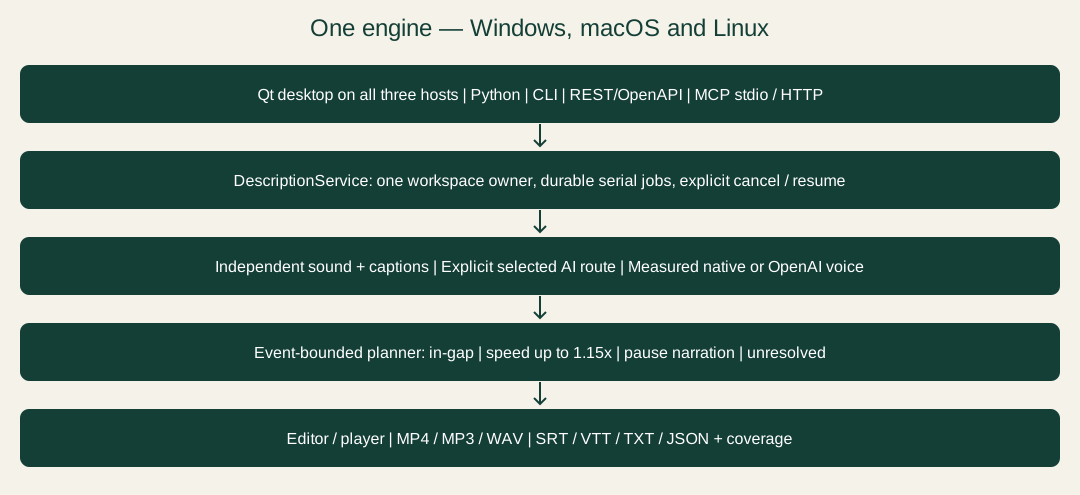
app.py owns Qt UI, state, confirmations, worker lifecycle and project operations. model_picker.py manages discovery and selection. engine/ owns the headless serial service, independent audio protection, event planning, checkpoints and complete exports. services.py supplies segmentation, provider/speech adapters and settings. adapters/ plus cli.py expose REST/MCP/CLI over that same core. models.py implements Ollama HTTP/discovery/streaming and frame extraction. project.py validates JSON/cues, imports subtitles and persists projects. platforms.py handles host paths and secure credential backends; unix_speech.py provides measured macOS/eSpeak narration. Dedicated modules handle Windows speech, playback queues, compatibility, translations, diagnostics and updates.
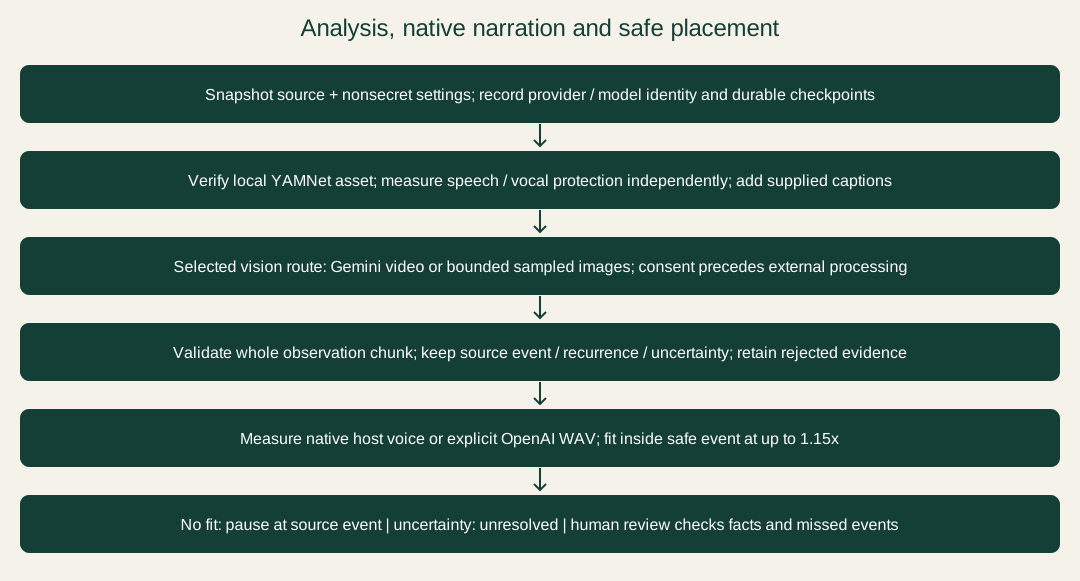
The GUI copies settings/project before a generation job. FFmpeg prepares successive clips. Ollama extracts at most eight images per request; Gemini uploads the segment. Replies are parsed and normalized, relative times are offset into the video, and the new cue list/glossary is committed to the GUI when the job completes. A failed/truncated/cancelled generation does not apply its partial result to the displayed project.
See ARCHITECTURE.md for source-linked responsibilities and Mermaid sequences. The site diagrams are static SVG with textual explanations for nonvisual reading.
16. Adapter contracts and limits
Ollama metadata endpoints are /api/tags, /api/ps and /api/show; generation streams newline-delimited JSON from /api/chat. The adapter blocks redirects, uses a validated root URL and requires HTTPS off loopback. Every analysis/scene request verifies reported vision capability. Cloud/remote classification uses metadata, known cloud suffixes and server location; it is a disclosure heuristic, not network attestation of the model implementation.
Local structured requests set format:json. Hosted requests omit it because that API path does not support the same structured-output parameter. Prompts still ask for JSON and replies are parsed. A missing final event, empty answer, done_reason:length, malformed JSON, timeout or excess response size is an error; there is no silent fallback. Response accumulation is capped at 4 MiB, including streamed thinking. Cancellation is checked between events; HTTP reads have a maximum 120-second idle timeout bounded by the configured timeout.
Matched Gemma/Qwen tags override request options to num_predict:32768, num_ctx:65536, omit temperature and use think:false. DeepSeek 1017 uses think:"low". Other tags start with num_predict:8192 and the configured sampling value; they do not inherit a forced 64K context. These are implementation limits, not general claims about a model's maximum supported output.
Gemini uses google-genai file upload, processing polling and generation with the selected model/key, JSON response request and optional supported safety thresholds. Retryable 429/5xx errors receive bounded backoff. File deletion is attempted on exit. Provider restrictions/retention remain external. OpenAI speech uses /v1/audio/speech with description text; it is independent of the analysis picker.
17. Project format and integrations
Since 0.7.0: existing projects still open. Newly saved projects use format 2 to protect identity and review history; older 0.6.1 applications will report an unsupported project version rather than discard those details. Keep your original project copy if you need to continue using 0.6.1. The example below shows version 2; version-1 files are still readable.
The developer guide covers the shared Python service, scriptable CLI, REST/OpenAPI and MCP over stdio or Streamable HTTP. Submit returns a durable job handle; inspect status, cancel/resume, page/time-filter descriptions, read coverage, edit with a revision, ask/explore and export. One process owns each workspace and runs one job at a time. GUI users can choose File → Start developer API / MCP to share their engine at 127.0.0.1:8796; the private token path is logged. Other clients connect to that owner. Do not expose this local service directly on the Internet.
Example .adproject (illustrative; update the media path):
{
  "version": 2,
  "video": "C:/media/example.mp4",
  "duration": 60.0,
  "cues": [
    {"start": 2.0, "end": 5.0, "text": "A cyclist crosses the bridge."}
  ],
  "glossary": "cyclist: Blue helmet and yellow jacket."
}
Project schema version is independent of application version. Loading requires version 1, finite nonnegative timings, valid text and cue bounds. Import validation is strict; AI chunks require valid text, timing and metadata for every returned observation; invalid chunks fail without accepting partial results. Settings schema is separate and migrates bundled presets. Do not use source-controlled settings files to distribute credentials.
Windows-only optional update-feed shape (example only; no custom service is supplied):
{
  "application": "DescriberWorkbench",
  "version": "0.8.1",
  "url": "https://example.org/DescriberWorkbench.zip",
  "sha256": "REPLACE_WITH_THE_ACTUAL_64_HEXADECIMAL_CHARACTER_DIGEST"
}
The example digest is deliberately invalid and must be replaced. Remote feed/package URLs require HTTPS. The updater validates application/version/hash, rejects unsafe archive paths/symlinks and requires the portable EXE plus _internal structure. A downloaded package is staged before a separate installation confirmation. No original-app updater/feed is reused.
18. Tests, evidence and extending the app
Run the standard suite on Windows:
.\.venv\Scripts\python.exe -m pytest -q
.\.venv\Scripts\python.exe tests/local_acceptance.py "C:\media\sample.mp4" "C:\receipts\workbench"
The optional second command opens an owned window, makes a short clip, tests editing/seeking/playback, DPAPI, native speech and MP3. It writes local artifacts and is not a cloud test. Additional acceptance scripts in tests/ exercise library formats, audio mixing and update staging/rollback; read their inputs before running. verify_payload.py compares frozen source code fingerprints to the executable and checks reader dependencies. It does not prove human usability or visual accuracy.
The Windows 0.7.0 suite passed 182 tests and 3 subtests; its signed-package and installation evidence is in the 0.7.0 acceptance record. Historically, v0.5.1 passed 51 tests and 3 subtests and v0.5.0 passed 43 tests and 3 subtests. Real vision/classifier/speech checks covered three 120-second samples, and packaged GUI/CLI/HTTP/MCP startup passed. See historical desktop acceptance and historical engine acceptance in their original version context. These results are functional evidence, not a visual-accuracy percentage.
Historical 0.4.2 evidence: its suite passed 28 tests. Actual GUI Bunny seconds 62–122 with Gemma 26B and Qwen Q6 completed four requests per model with a clean initial glossary. The eight requests carried the requested off/32K/64K settings, runner contexts were 64K and no thinking output or truncation occurred. Projects matched responses; cue counts (29/25) are not quality scores. The release verification asset pins the executable and source identity. Raw local receipts are excluded from Git/public downloads because they include images and paths.
Current 0.8.1 Mac/Linux package evidence is recorded in the release receipt: 311 tests passed on each GitHub test machine (0 failed, 1 skipped), plus secure credential storage, measured speech, MP4/MP3, packaged startup/close, CLI/HTTP/MCP and repository launchers. Native CI is not VoiceOver/Orca or human-listening acceptance.
Still unverified: separate keyed Gemini/OpenAI/Anthropic and LM Studio/llama.cpp live operation, full-film analysis/AD quality, NVDA/JAWS user acceptance, native-speaker translations, third-party legacy voices, live public YouTube extraction ; production update evidence is recorded in the release verification asset. Fixtures validate adapter/format behavior without proving live provider acceptance. Documentation-only publication does not rebuild or change an accepted executable.
When extending a provider, trace selection → saved exact tag → capability/preflight → confirmation → request → normalized response → GUI/project. Preserve cancellation and existing cue data on failure. Add focused affected tests and document real transmission/compatibility limits. Do not claim another provider is supported solely because it is named by a discovery endpoint.
19. Support and license notes
Report issues at the GitHub issue tracker. Include app/operating-system version, exact tag/provider, range, reproducible steps and redacted logs. Share a public sample only if you have the rights. Omit keys and private paths/media.
This is newly written reconstruction source, not recovered original source or an original-author-endorsed release. New Workbench code is licensed under Apache-2.0 with no warranty. Third-party dependencies/translations retain their own terms; Apache-2.0 does not relicense those assets. See third-party notices.
Redesigned desktop interface
Since 0.7.0, all native platform packages and the source tree include the Industry PySide6 interface described here. New scene answers are marked for review. Mark as checked appears only on Needs review descriptions. Use it only after verifying visual facts; editing invalidates measured narration and the engine replans it at media export. Saved projects and engine protocols remain compatible.
Timeline navigation and desktop visual controls
Use Ctrl+mouse-wheel over the timeline to zoom around the pointer, and the mouse wheel or bottom scrollbar to pan. The visible range follows the playhead; selecting a description brings it into view. The picture lane samples eight frames within the visible range and refreshes after zooming or panning; repeated frames can still occur in a static scene. Sped-up description blocks have diagonal stripes. Description tags distinguish In gap, Sped up, Pauses picture and Needs review. Theme and Settings are icon buttons; the editor toolbar and document status counts are hidden on Start. Sliders, checkboxes and scrollbars use the interface accent in both themes. Select a model row or edit its exact tag in the separate Exact analysis model ID field. Supported subscription/API routes offer a synthetic-image Test connection; Ollama retains its labeled text test and Gemini is checked when an operation starts.
The Draft dialog accepts multiline editorial instructions and preserves the selected provider/model. Scene questions have a labeled Context range; every answer card has Speak, Copy and Add as description actions for its captured position. Glossary cards keep Add character beneath the list. The model chip shows the actual selected ID, and the status separates ordinary in-gap, sped-up, pause and review counts.
At export, choose a narration engine and a voice in the dropdowns. Native voices are read asynchronously for that engine; changing engines refreshes the list. OpenAI lists the configured base voice and saved presets. Accepting Export saves the choice for subsequent exports; cancellation preserves settings. Voice listing does not send description text to any provider.
Setup and recovery changes (0.5.2)
These recovery controls were introduced in 0.5.2 and retained in 0.8.1. The 0.7.0 acceptance record records checks and verification limits.
- Draft provider/model edits are committed by Start; Cancel preserves saved settings. Ollama Refresh and Test operate on the exact displayed ID. Gemini does not expose an Ollama-backed test. Slow preflight runs in the background; Cancel prevents continuation. Install/start Ollama separately and install your chosen vision model, then use Draft > Refresh models. No automatic model selection or download occurs.
- Setup distinguishes missing, configured, verified and error. A configured Gemini key is not an account-access test. Detector verification is cached and invalidated by file changes. Voice readiness concerns the selected export engine, not playback voices.
- Editing text/timing retains visual evidence, original event timing and review status. Stale narration is invalidated. Use Mark as checked only after review. Opening another video/project clears Scene answers and ignores stale callbacks.
- Export checks extension and destination access while keeping the dialog open for corrections. Existing output/coverage files require replacement confirmation even for typed paths. Failed or empty voice discovery blocks narrated media but leaves script formats usable; Retry voice discovery or choose another engine.
- File > Repair narration regenerates missing narration and placement through the shared engine without repeating vision. Missing referenced audio is also reported on load/playback. Consent precedes cloud speech. Save the repaired project to retain its new audio references.
- File > Recover interrupted jobs lists readable failed/cancelled/interrupted jobs with original source and operation. Resume uses original saved settings plus current keys, and opens the result as an unsaved recovered project. Checkpoints are reused only when source, model, settings and implementation identity match. An older release's checkpoints may be incompatible with this version; rejection preserves them. Damaged job records are reported and left unchanged; restore them from a backup rather than deleting the engine workspace.
- The developer API announces readiness only after startup. A busy port is reported; no conflicting process is terminated. Stop/retry once the conflict is resolved.
- URL failures offer connection/account/extractor guidance and a local-file fallback. The app does not import browser cookies or bypass bot challenges. On Windows, Check for updates with a blank feed queries the official latest stable GitHub release; the older0.5.2 behavior only offered the releases page. Mac/Linux open the separate add-on downloads for manual replacement.